

Tracking the Pageviews of the Single Page Applications (SPAs) needs some additional setup to the Basic GA4 or UA Implementation. The main idea of the Single Page Application is that there are no pageview events sent to GA anymore to understand if there is a pageview happening or not. So in order to communicate with GA by GTM, we need historyChange events to send Virtual Page Views to Google Analytics. To set up Virtual Page Views, we need history Change events pushed to the dataLayer by the dev team when a page changes on the backend.
Example of a dataLayer push for a historyChange event:
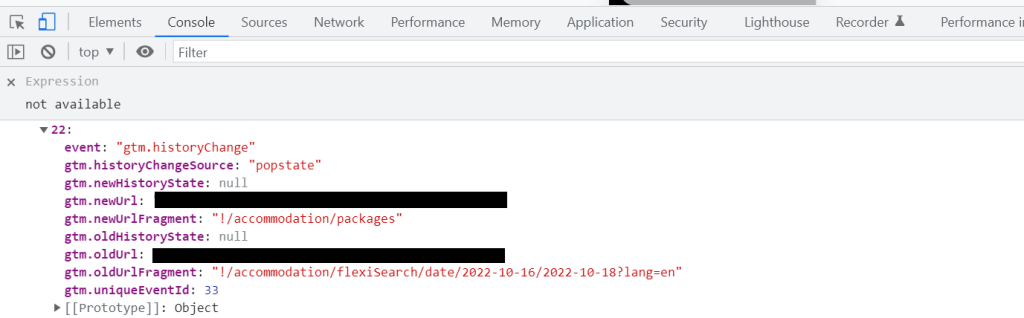
If we examine the dataLayer structure of the historyChange event, there are some variable parameters such as oldUrlFragment and newUrlFragment. Those values are showing us what are the historyFragments of the new page. When we are sure those historyChange events and values coming into the dataLayer are correct, we are good to go. Let’s start taking the data from the Single Page Application to Google Analytics 4 and Universal Analytics.
The implementations are also going to solve the problems mentioned below:
- If we want to track both the first page and the other pages of the Single Page Application: The setup should cover both the physical pageview and historyChange events. Because when we are coming to the first page of the Single Page Application we won’t have any historyChange events being pushed since there are no physical page changes yet.
- If we want to track the exact Page URLs of the pages: We need to add a Javascript Variable if we can not reach the page URL while the pageview event is happening. Also, some Single Page Applications are connected to a website with a bunch of pages not using any historyChange events thus the Javascript Variable should suit the whole website system.
1) Virtual Pageviews for Universal Analytics
- Add a Variable named “Google Analytics Settings”.
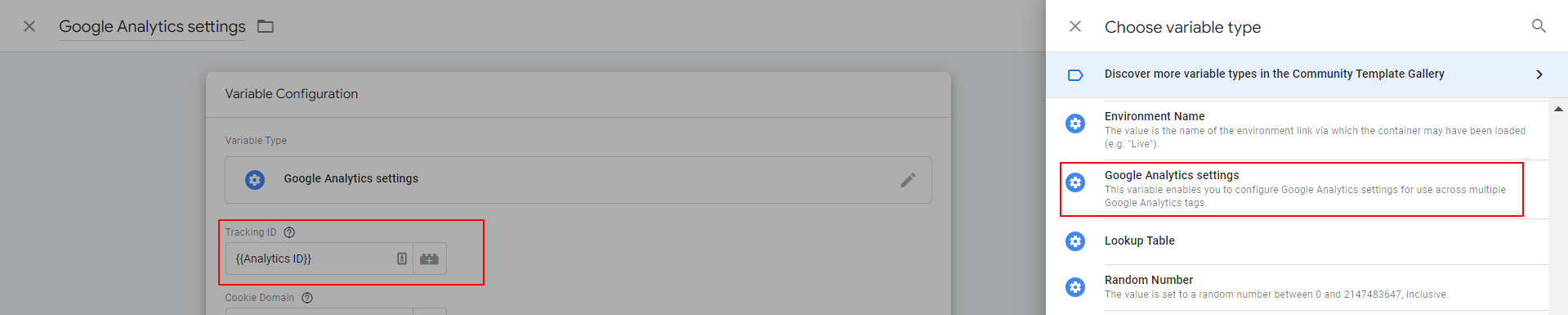
- Add 2 new Variables to bring the values from dataLayer to GTM: Variables -> Configure -> Scroll down to see “History” section -> Select “New History Fragment” and “Old History Fragment”.

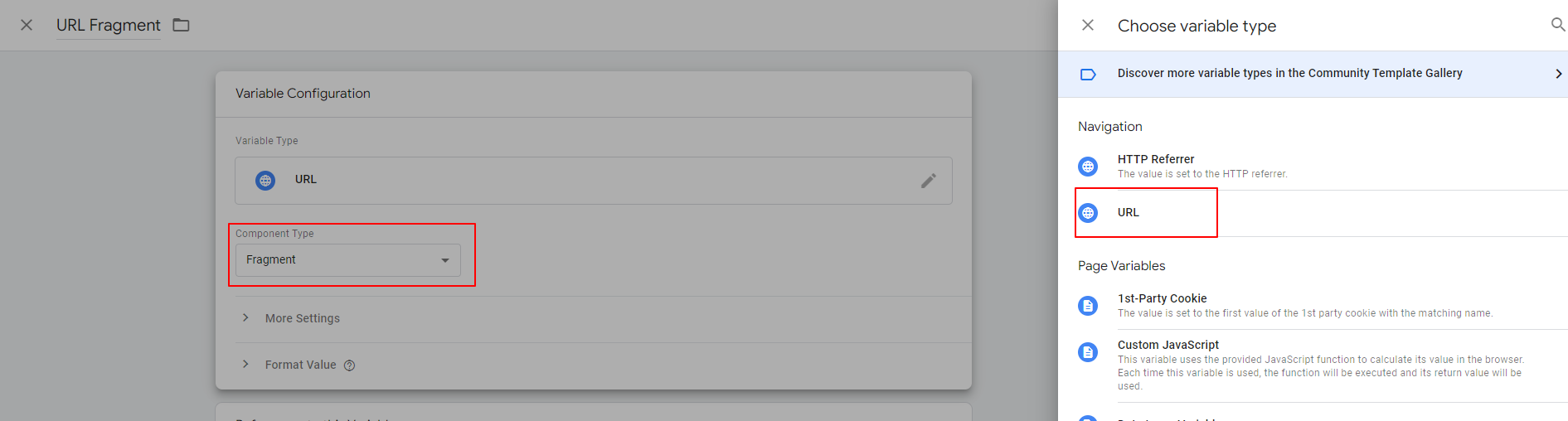
- Add a new built-in variable named “URL Fragment” and find the “URL” from the right-hand nav. After that, under Variable Settings, select “Fragment” from the dropdown menu. It is going to fetch the “URL Path, Hash, and Query” of the page with a clean format.
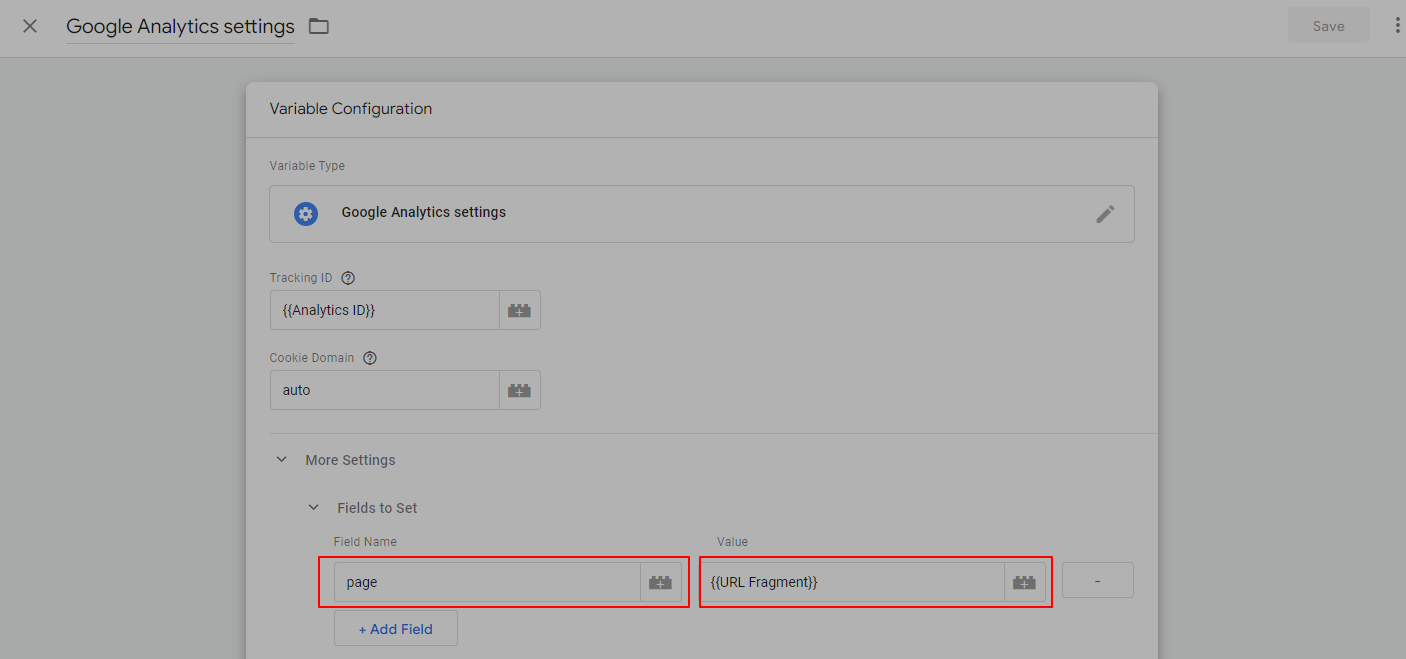
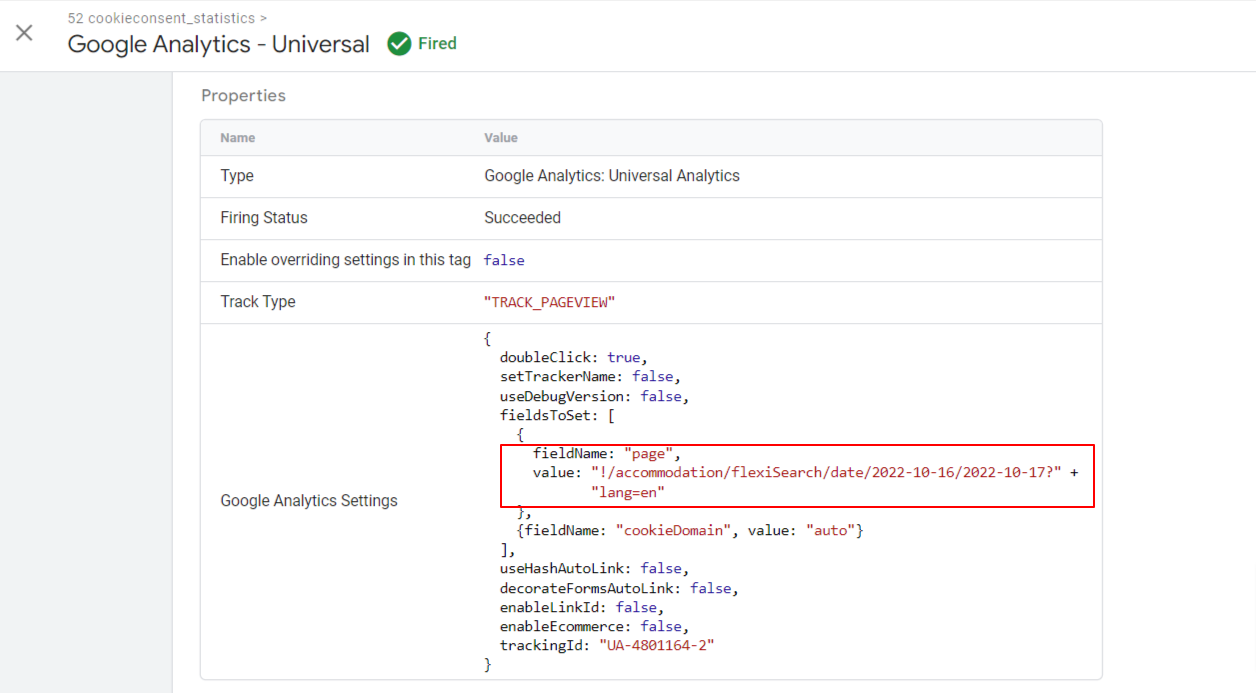
- Come back to the Google Analytics Settings Variable and add a Field. The field that we are going to add will be named as “page”. The value of this field will be “{{URL Fragment}}”.
- Add a new built-in trigger named “All Pages – History Changes” and select the “History Change” as the Trigger Type from the right-hand nav.
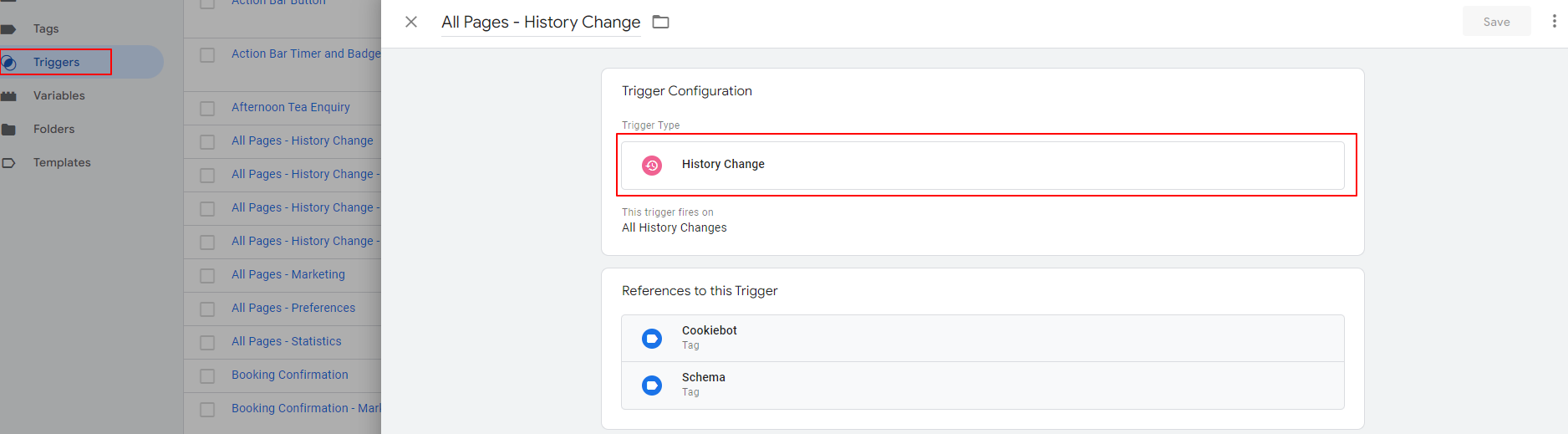
- Lastly, create a “Google Analytics – Universal Analytics – Pageview Tracking” Tag and add the “Google Analytics Settings” Variable as it’s settings. Add “All Pages” and “All Pages – History Changes” Triggers and click Save.
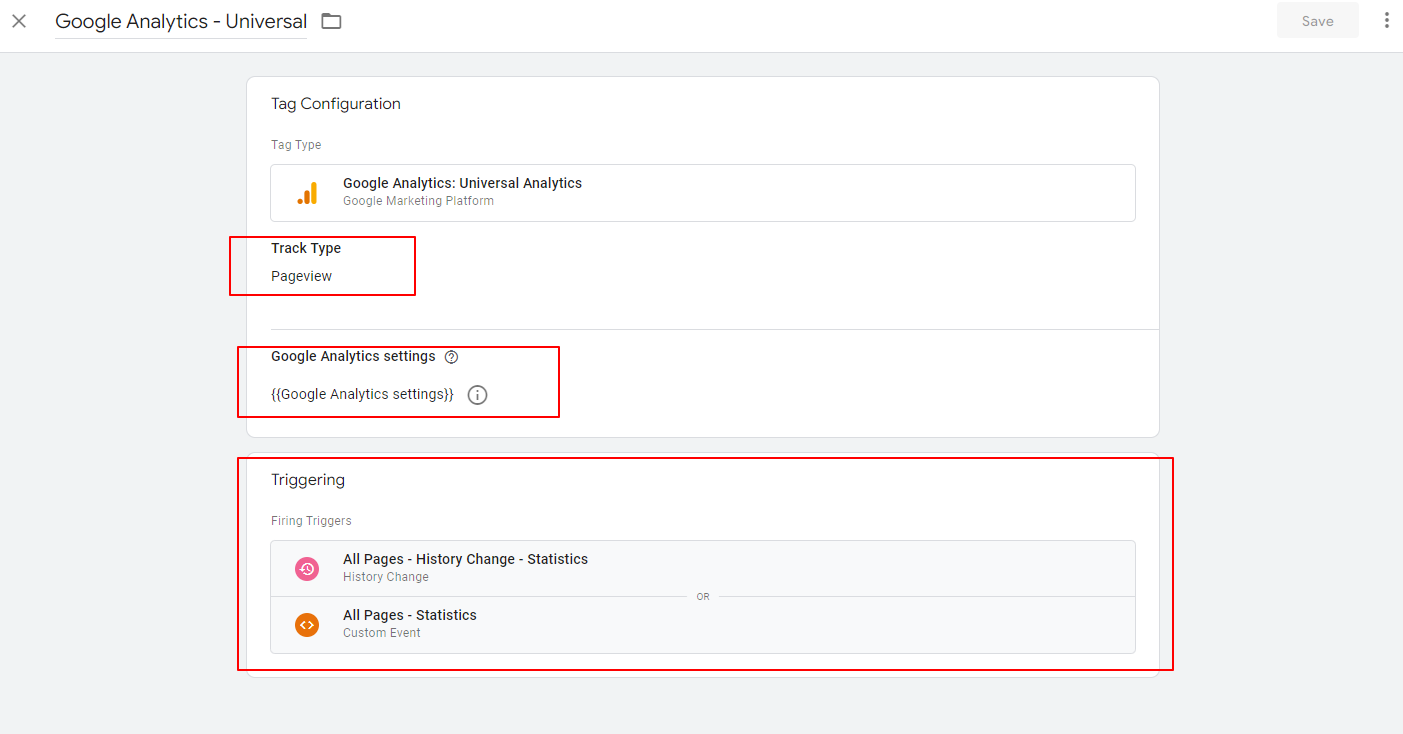
- Testing = When you are debugging from the GTM Preview mode, you should trigger some pages and also the homepage to see the Universal Analytics Tag is firing and it has the value “URL Fragment” with the correct value.
2) Virtual Pageviews for GoogleAnalytics 4
- Add 2 new Variables to bring the values from dataLayer to GTM: Variables -> Configure -> Scroll down to see “History” section -> Select “New History Fragment” and “Old History Fragment”.
- Add a new built-in variable named “JavaScript Page Location” and check the “Javascript Variable” from the right-hand nav. Type “window.location.href” into the “Global Variable Name”. It is going to fetch the “Full URL, URL Path, Hash and Query” of the website with a clean format.

- Add a new built-in trigger named “All Pages – History Changes” and select the “History Change” as the Trigger Type from the right-hand nav.
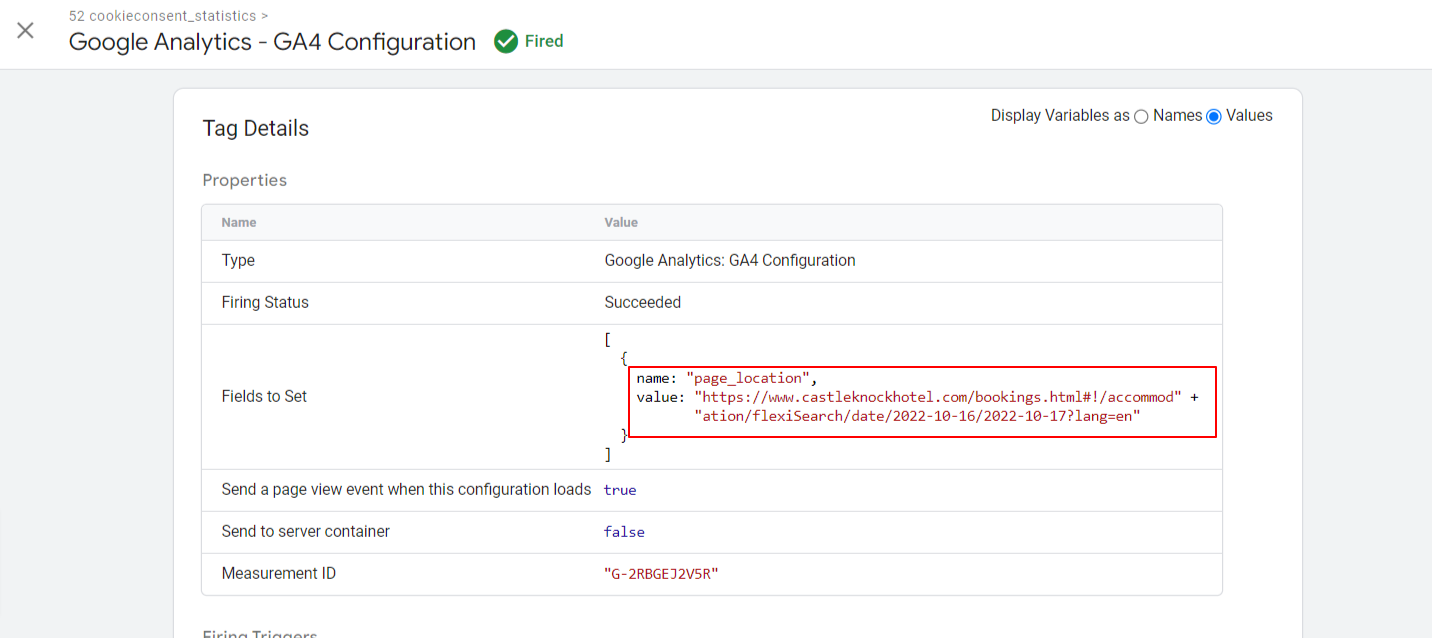
- Lastly, create a “Google Analytics – GA4 – Pageview Tracking” Tag and add the GA4 Id. Then add a field named “page_location” (it is important because “page_location” is the built-in parameter of “page_view” event in GA4). Add “Javascript Page Location” as it’s value. Add “All Pages” and “All Pages – History Changes” Triggers and click Save.
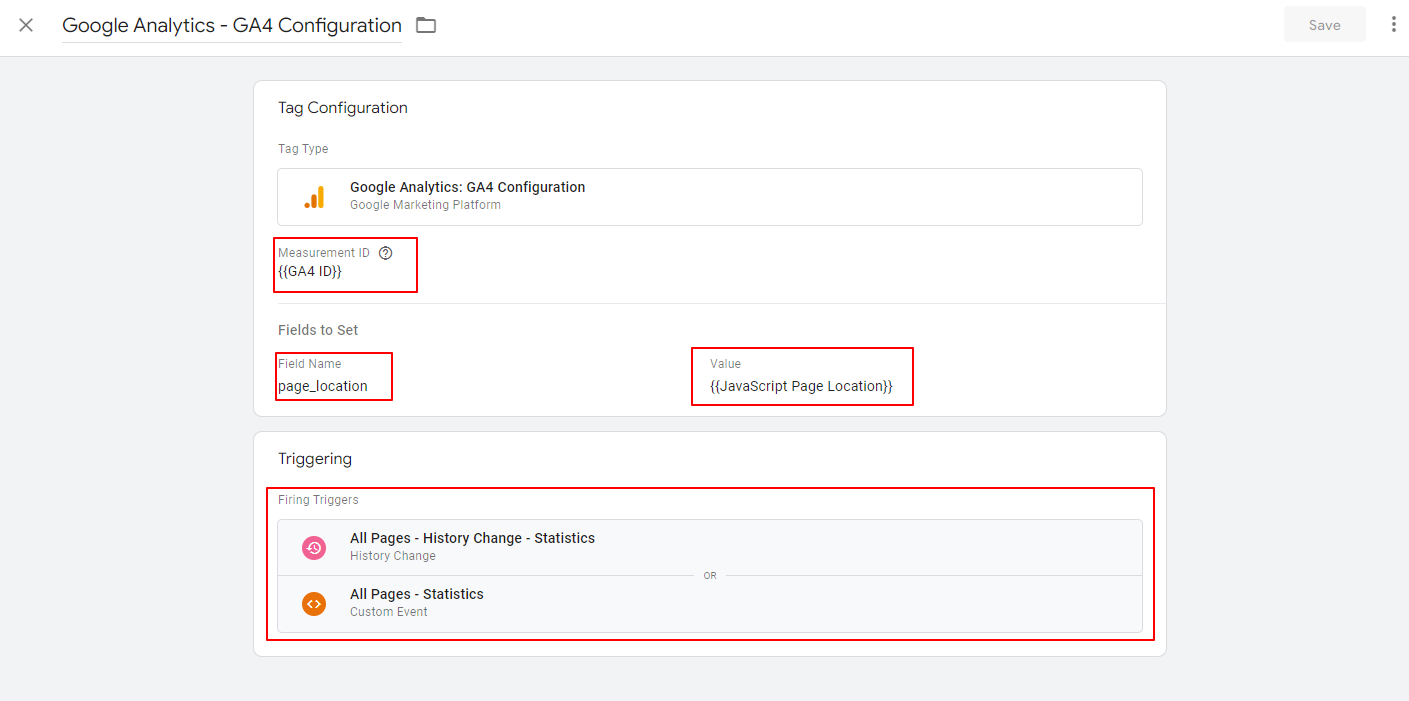
- Testing = When you are debugging from the GTM Preview mode, you should trigger some pages and also the homepage to see the Google Analytics 4 Tag is firing and it has the value “Javascript Page Location” with the correct value.
Thanks,
 Answers to your How Questions for Marketing