
I know, I know… We are now moving to Google Analytics 4 aka GA4. However, for some digital marketers, data from Universal Analytics can still be valuable.
To exclude a pageview/page URL from Universal Analytics, you can follow a very simple guide down below to take this action.
VERY IMPORTANT NOTE: If you are going to test it from the Real-Time view, you must be aware of that the Real-Time view with filters applied within 2 hours is not affected yet. Thus you have to be patient to see the effect of the filter you have just defined.
Filtering (excluding) the Pageview
- Enter your Google Analytics Account > UA Property > Filtered View. (If you don’t have any Filtered Views yet, it is advised that you should open a view next to your Unfiltered View containing raw data of your website.)
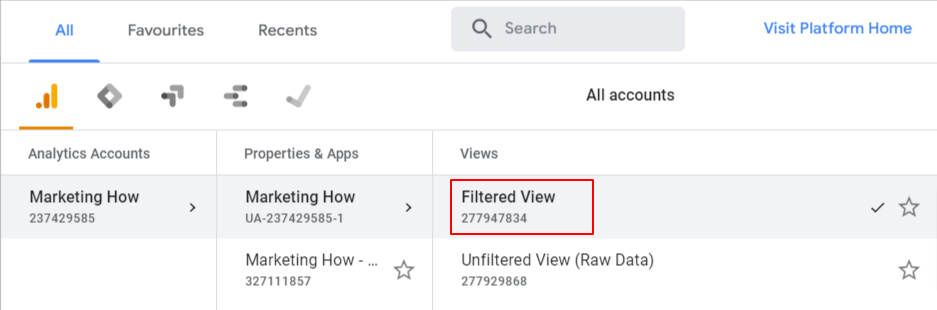
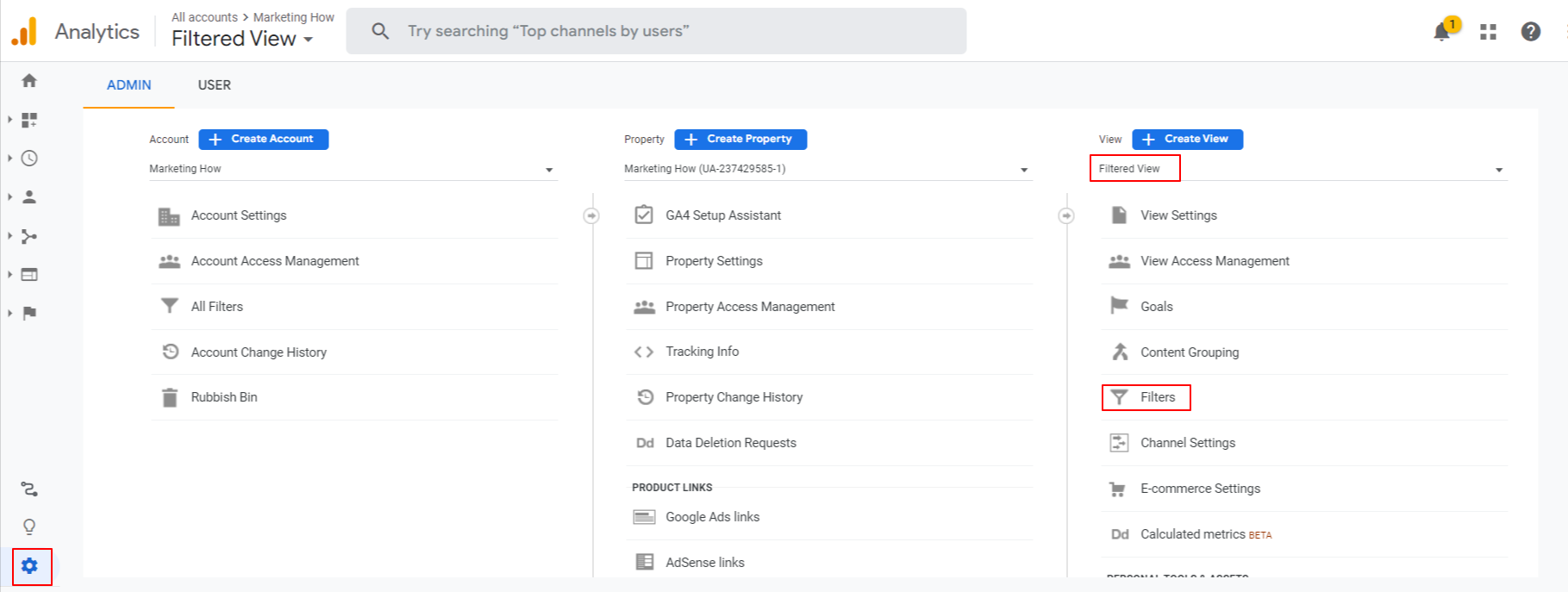
- After you’ve created your Filtered View. click the “Gear” icon in the bottom left-hand corner and then click on the “Filters” under your Filtered View.
- Click “+Add Filter”, set “Filter Type” as “Custom”, set “Filter Field” as “Request URL” and enter your desired URL to exclude from this view.
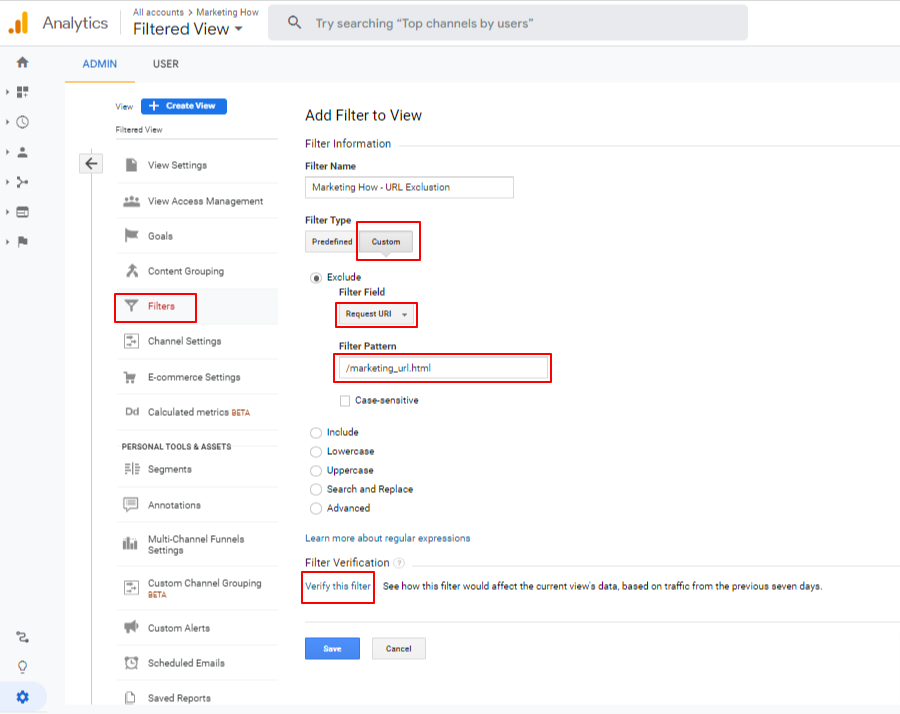
- Click “Verify this filter”. (If you don’t have enough data to verify, it is going to give you an error. You can just continue without verifying it if you are confident that the URL that you have typed is correct.)
- Click “Save”.
- To test, you can wait 2 hours to trigger. Under Real-time > Content section or you can wait a couple of days to view this page again under Behaviour > Site Content report.
Thank you,
 Answers to your How Questions for Marketing